Monday, June 1, 2020
HubSpot Productivity Hack | Sequences
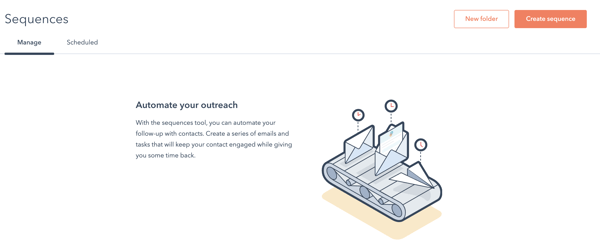
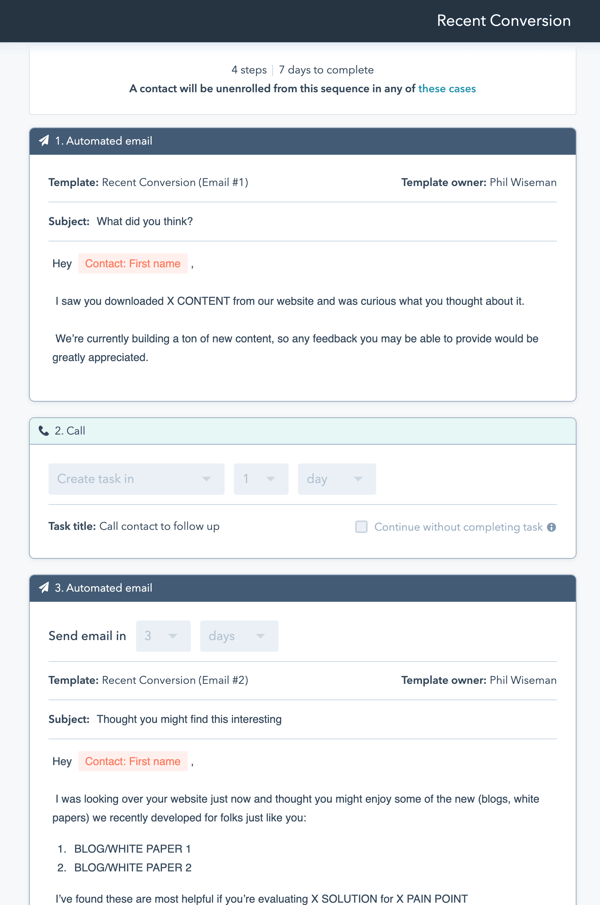
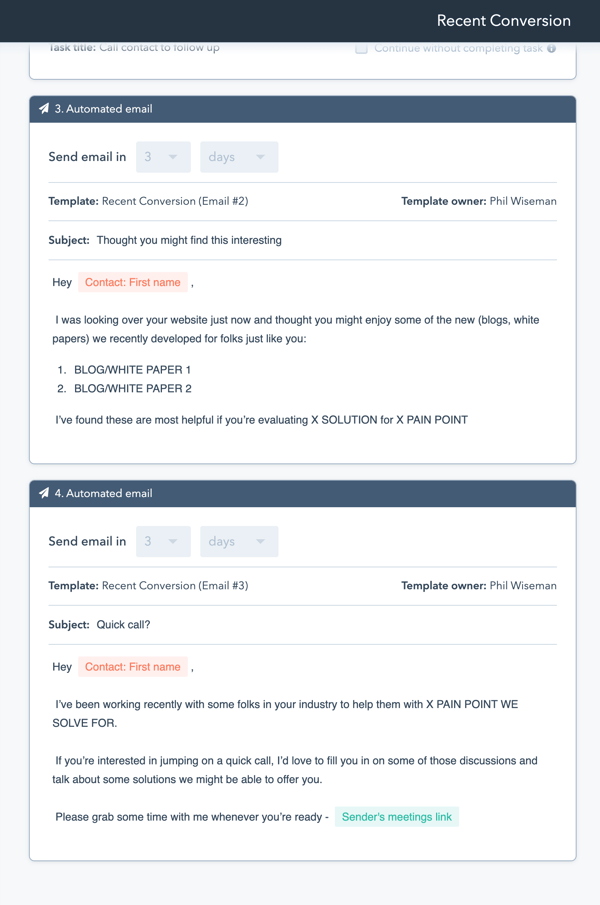
Today we're gonna talk about a great productivity hack inside of Hubspot called Sequences.
I prefer automation.
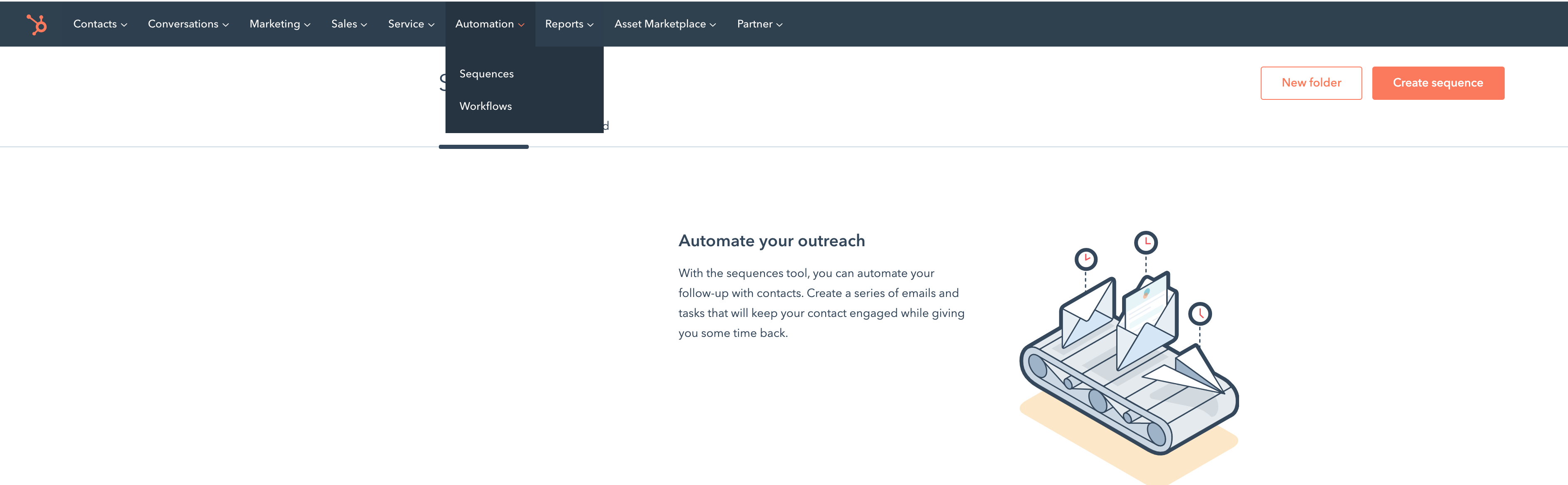
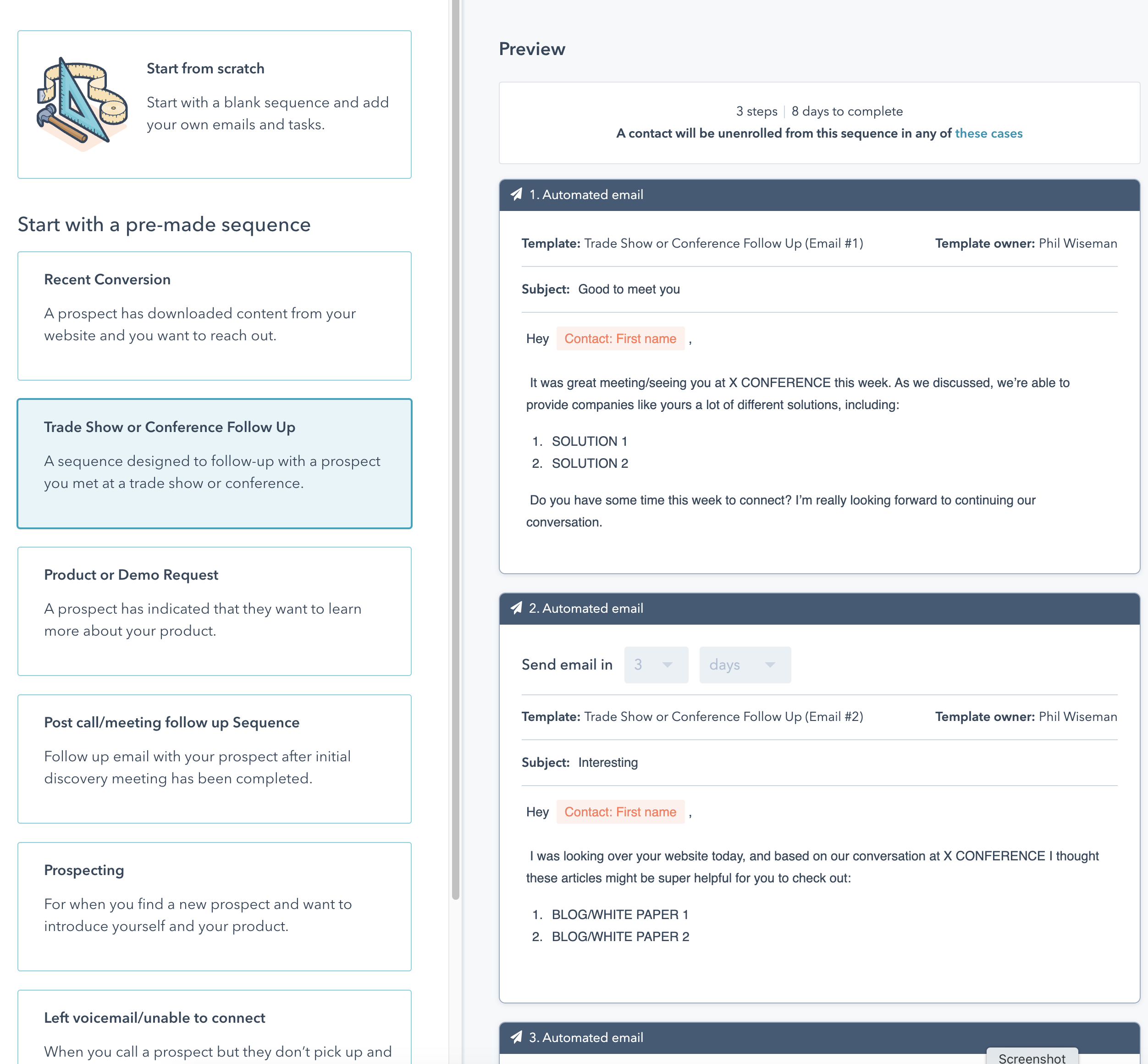
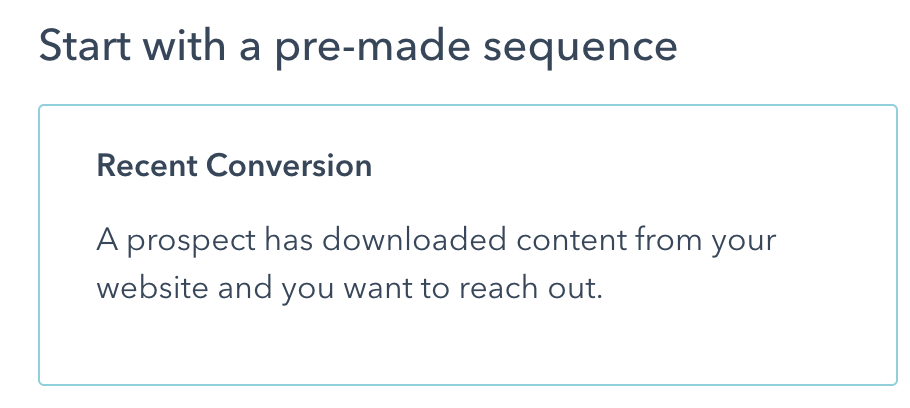
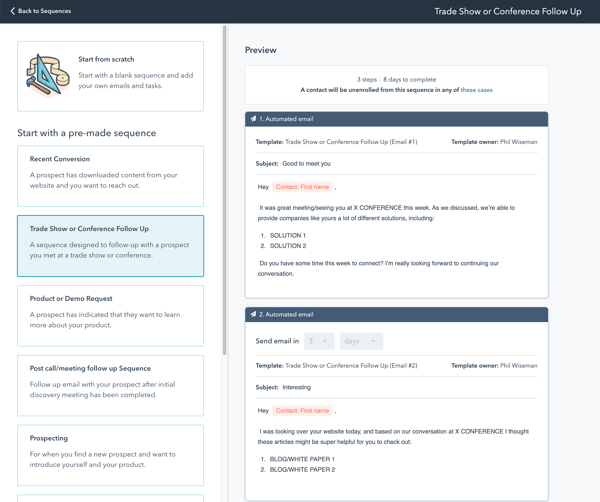
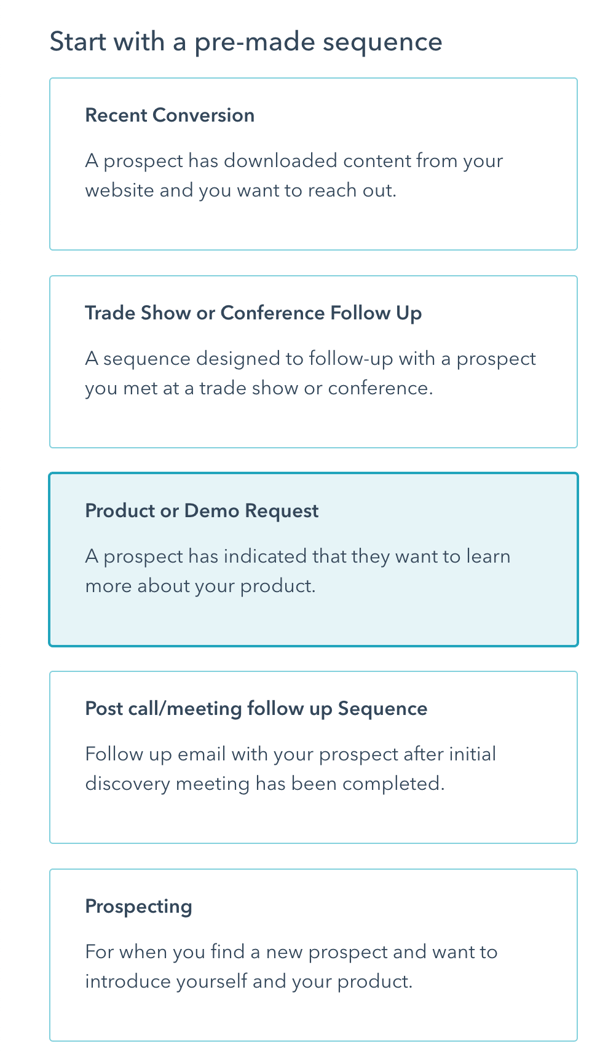
So just hit create sequence and you could start from just scratch, but if you're new to Sequences, I would recommend you look through some of the pre-mades and get some ideas.


Tuesday, May 26, 2020
HubSpot Productivity Hack | Snippets
What exactly is a snippet?
I don’t know about you, but I find myself typing the same things over and over on a daily basis.
Can’t quite turn them into an email template because I don’t use them in every email.
You know, the old school way would be to have a Word document and you cut and paste.
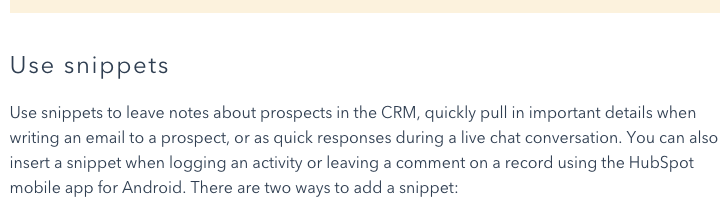
Snippets are a great time-saver.


Source: HubSpot
A snippet is a message that you’re going to use repeatedly. You don’t want to retype it five or 10 times a day, so you just simply create a snippet.
So go over here in HubSpot to Conversations, then Snippets, and now I’ve created this snippet just for test purposes called Great Message.


Personalize Your Snippet
You can put personalization inside of it. First name, company name. You can put a hyperlink.

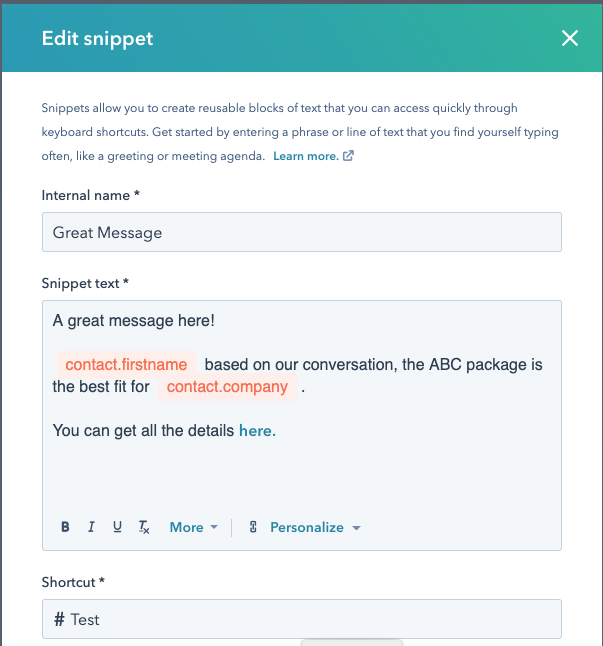
So if you find yourself typing these sorts of things multiple times a day, a snippet is a great productivity hack.
Use Snippets in Emails
So we’re going to call this snippet Test, we’re going to save that snippet, and now we’re going over and create an email.
So I will send Phil Wiseman this great snippet test email. So instead of, “Hey Phil, how’s it going? “Blah, blah, blah, blah, blah.”
Instead of doing all that, I’ll just go to Snippets, click Snippets, and boom.


You see, now I have added a personalized message to an email using snippets inside of HubSpot, one mouse click, no cutting and pasting.

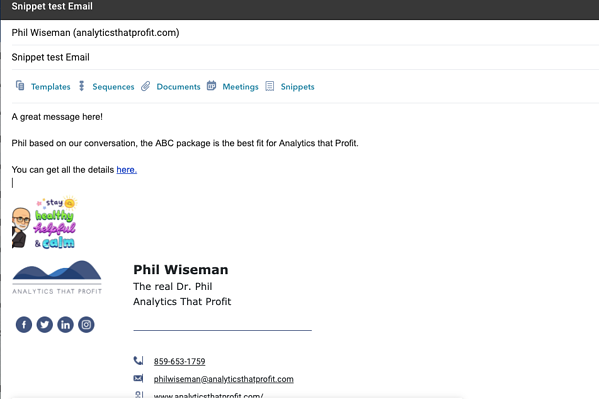
A great time-saver, a great productivity hack. Hey guys, be more efficient, make more money.
If it is true that time is money, then you need to save time and make more money using snippets.
Not sure if you are getting the maximum ROI from HubSpot? Maybe you just want some one on one coaching and training.

Source: HubSpot
Monday, April 6, 2020
How to clean up your LinkedIn messages in minutes.
I don’t know about you, but my LinkedIn inbox has gotten out of control. It was time to do something about it. So, I started to delete messages.
The problem is I had thousands of emails. OK, I will just take a Saturday and clean it up.
Stop the madness! Is this a really good use of my time?
Deleting messages in LinkedIn
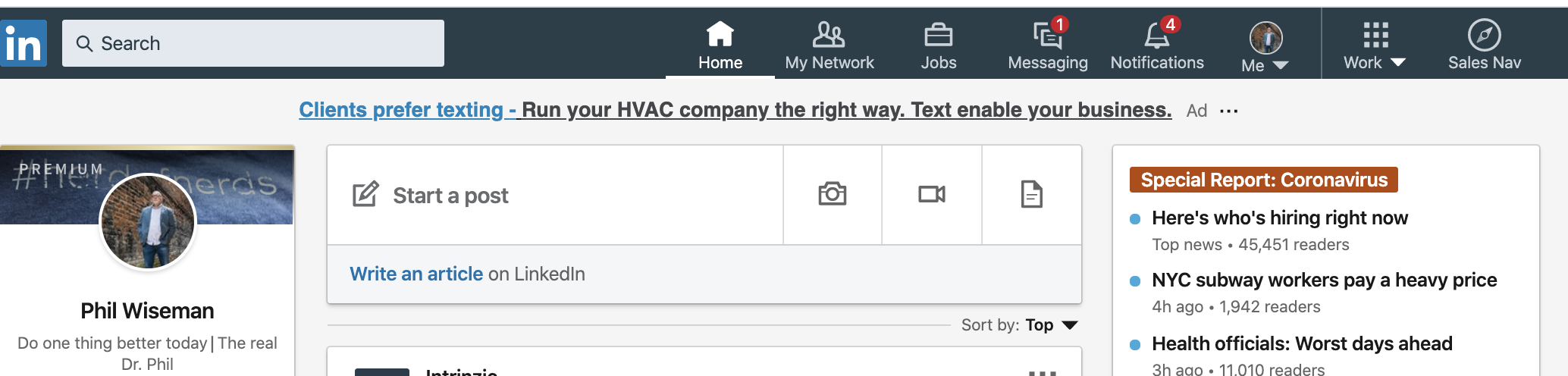
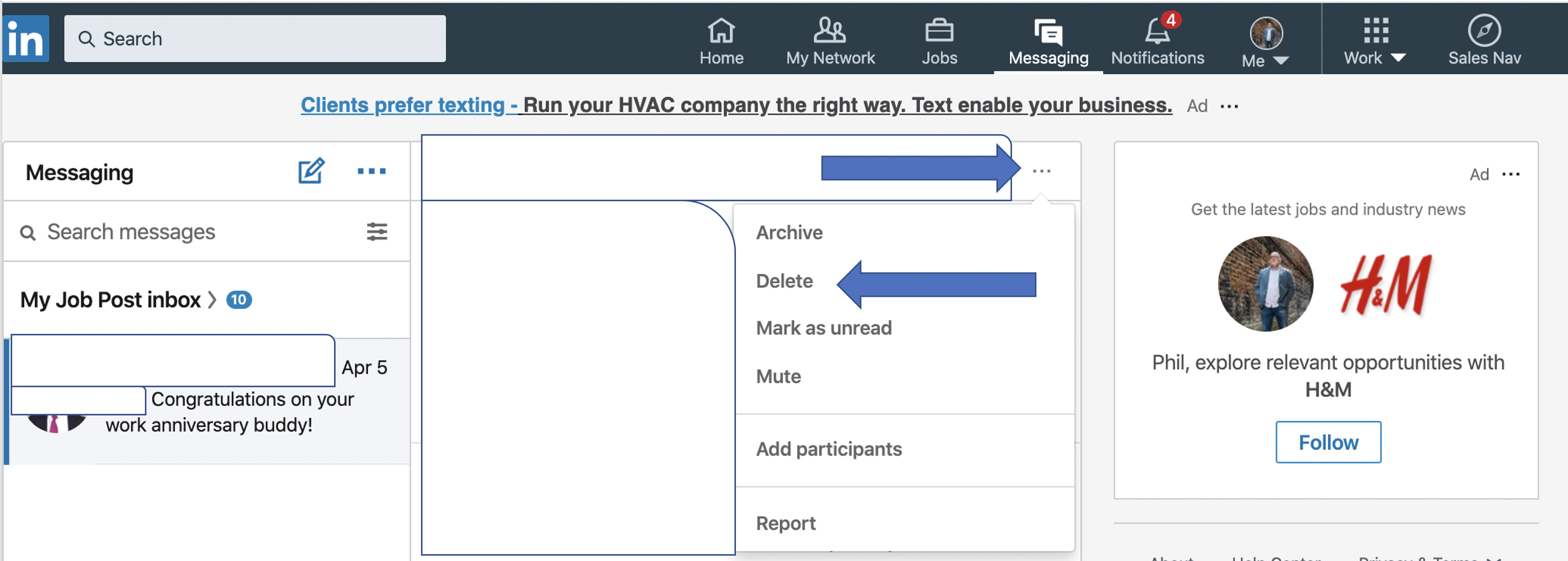
You have to pull up each message, click the three dots and delete. Is this a new torture technique? I just didn’t have the patience to do this and was this really good use of my time? NO.
There has to be a better way and I can’t be the only person that has this problem.
A quick search of GitHub and sure enough I was not the only person aggravated by this and there was a solution already in place.
First, I want to nominate Tim Whitacre for a Nobel Peace Prize.
“ LinkedIn is a valuable resource, but sometimes it sucks. One of those times is when you want to delete messages. You have to select each message one by one. It takes about 4 "clicks" to successfully delete a message.
This script should help. Since LI requires you to perform multiple steps, I decided to automate it for you. Once you initiate the script, it will run every second. If a message has the ability to be deleted, it will be. If not, it will be archived. Some "InMail" messages cannot be deleted on the web app. This script should work as long as LI doesn't change their page layout or element names, which will happen eventually.”
This solution is so simple and quick it is a must-have in your tool kit.
First, log in to LinkedIn using the Chrome browser and go to Messages.
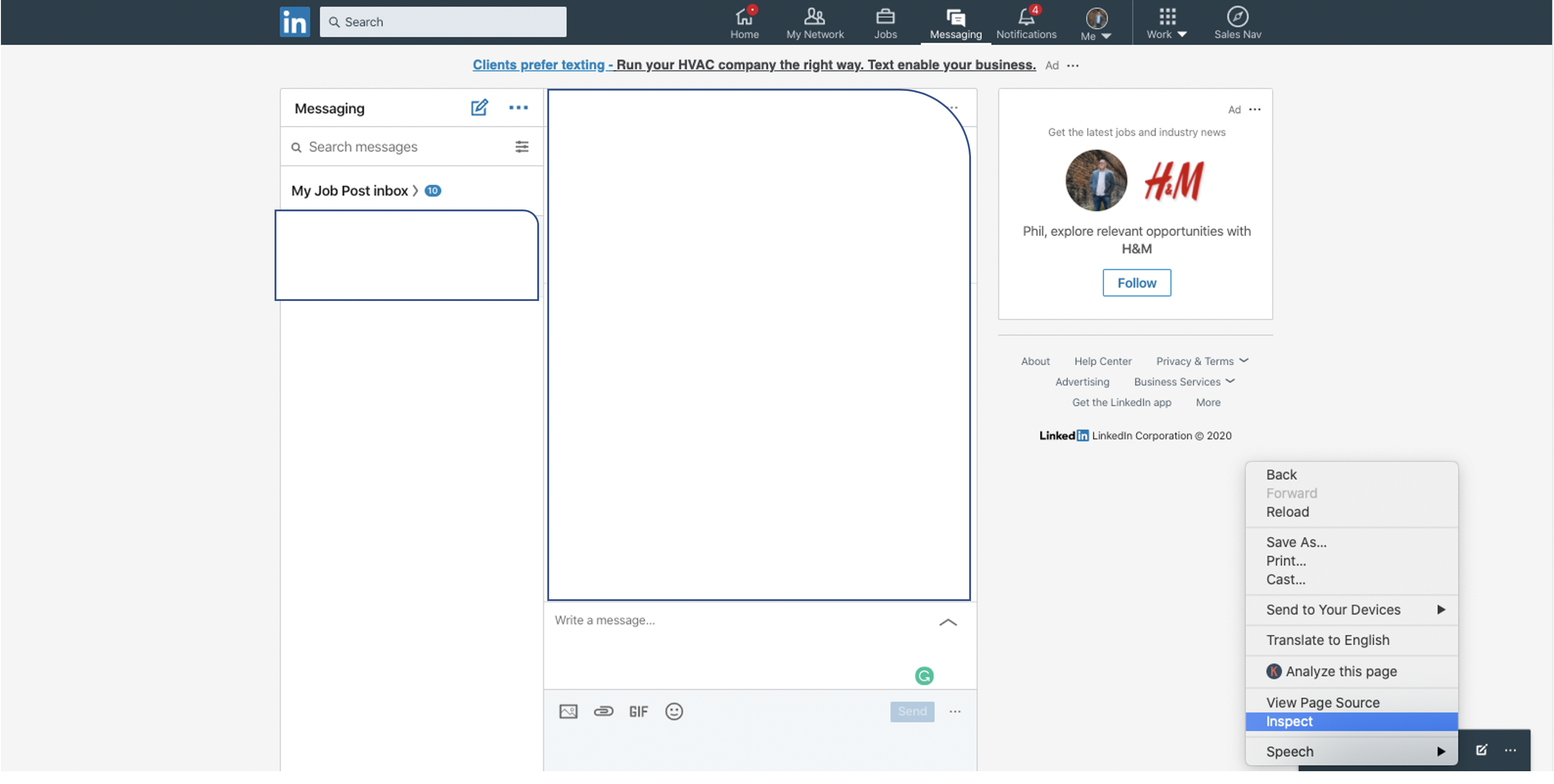
Right-click and click Inspect.
Now Click Console.
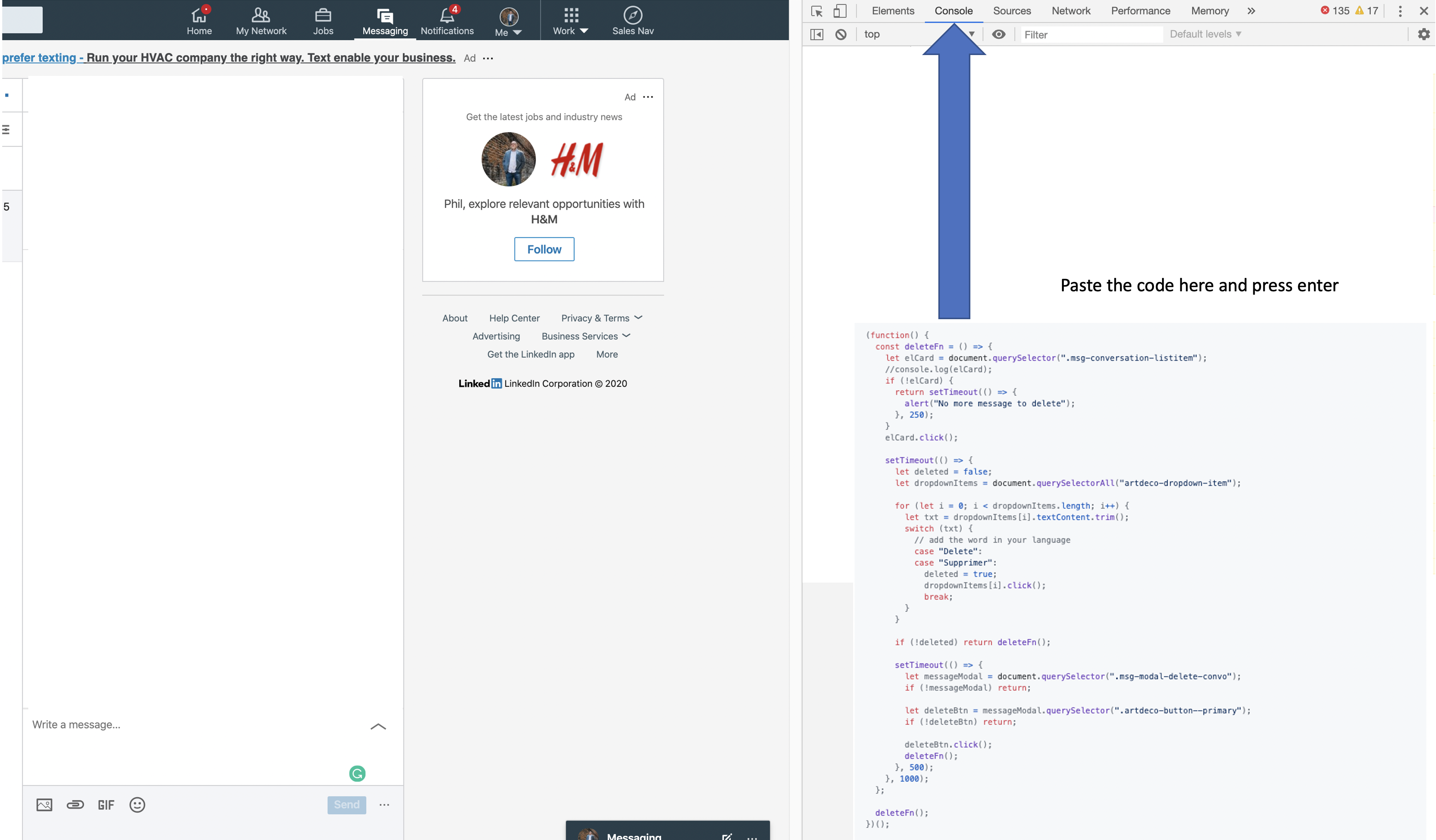
Paste this script at the bottom of Console and hit enter.
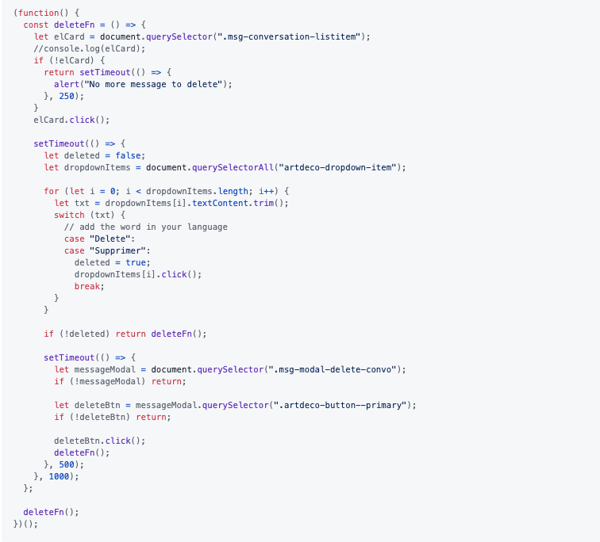
You can get the script here.
I used the modified script from igorissen. Just scroll down the page and you will find it.
GitHub is free and it is easy to create an account.
Bulk delete messages in LinkedIn
You will see your messages being deleted at a rate of about one per second.
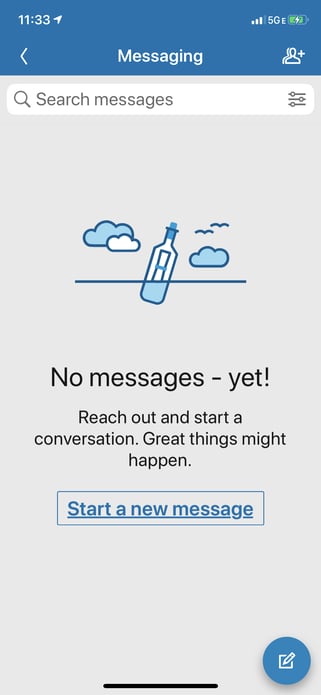
As I literally had thousands of messages, I ran the script several times. This was easy, when the script had deleted the messages, I cleared my browser history and logged back into LinkedIn and ran the script again.
Honestly, it only took 10 minutes to have no messages in my Inbox.
If you don’t want to spend hours deleting your LinkedIn messages this is a great solution.
Tuesday, February 11, 2020
Data-Driven or Data-Informed Marketing?
There is a bunch of talk these days about data-driven marketing versus data-informed marketing.
Is there really a difference?
An often-overlooked aspect of data is context. Let’s talk about the recent coronavirus outbreak.
Here is the data as of February 7, 2020.
20,000 illnesses
427 deaths
Now let’s compare that to the flu or influenza in the United States.
Coronavirus in China
|
Influenza in the United States
| |
Illnesses
|
20,000
|
19,000,000
|
Deaths
|
427
|
10,000
|
Hospitalizations
|
180,000
|
When viewed this way, it may appear that the coronavirus is not a significant problem. Comparison does not always include context. So far this season about 0.05% of those who caught the flu have died. Now for some context, the death rate for those who have caught the coronavirus is around 2%. This is such a significant problem the Centers for Disease Control and Prevention have created a website dedicated to the Coronavirus.
While certainly not life-threatening, data needs context in marketing as well.
A/B and/or Multivariate Tests
200% increase in Lead Conversion.
This sounds amazing, but what is the context? Did you go from one lead to two? Ten to Twenty? Is that a significant change?
Here is a quick example:
You have 1,000 visitors to your website.
You try two versions to improve results.

While this is an amazing improvement in conversions, can we attribute it completely to the changes we made?
What does it mean for something to be Statistically Significant?
If you perform an internet search on statistical significance you go into the weeds very quickly.
We will not go into the math behind statistical significance if you really want to know do an internet search.
In simplest terms, statistically significant means it did not happen by chance.
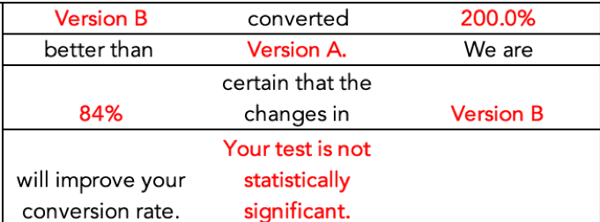
A key element of significance is sample size. This is very important when evaluating your marketing results. You really need to know if a change had an impact on the outcome.
The Law of Large numbers.
You roll a pair of dice. What are the odds you will get a one? 1 in 6. Now roll the dice. Did you get a one? Roll ten times. 100 times. 1,000 times. See where this is going? The larger the sample size the more likely you are to get the expected result on average.
So, let’s increase website traffic 10-fold. Maybe you do this through paid ads or paid content creation.

You still have a 200% difference in conversion rate, but you did not increase the number conversions. You made a decision based on data, but the data was not statistically significant, and everyone is now unhappy with the money spent and the results produced.
Now let’s take the same sample size and just add a zero to conversion rates.
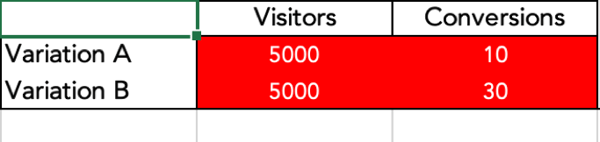
See what happens? Same conversion rate, but it is statistically significant. In other words, you can have a measure of confidence that your change effected the results.
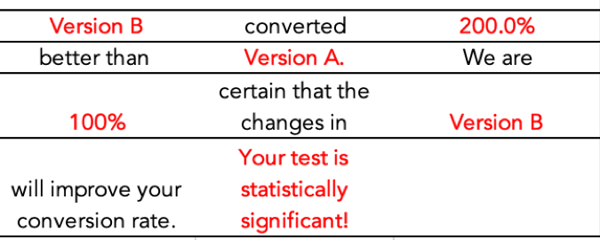
This is the context you are looking for when making decisions on your marketing. A simple statement of 200% improvement must be viewed in context.
We strongly encourage you to download your own calculator from HubSpot and examine your marketing performance in context.
Does a lack of statistical significance always mean you will fail when you scale up? No.
How do you inform your marketing decisions with data?
Another area of confusion is the concept of correlation. You perform an A/B or Multivariate test and it works great! Time to scale up. Wait just a minute, don’t invest additional marketing dollars based on correlation alone.
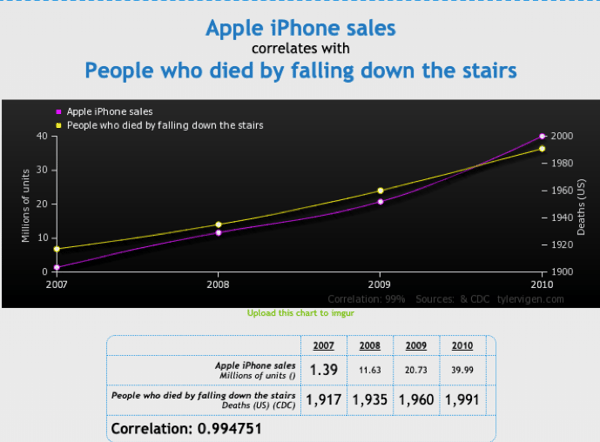
This is one of my favorites from the Spurious Correlations website. Correlation does not mean causation. We want to believe our brilliant marketing caused great results, but we need to inform our decision making with holistic reasoning skills. In a large organization, there may be multiple activities that impact results.
Be cautious when assigning cause and effect.
Did sales just attend a big trade show?
Was new marketing collateral just mailed?
Website updated and optimized for SEO?
How are you supposed to manage all of these possible contributors?
Keep records of changes
Use annotations in Google Analytics

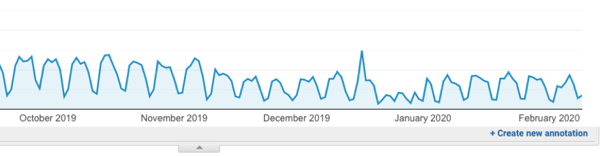

You should make annotations at the time of the event. It is difficult to go backwards and try to assign events after the fact. This little extra step will allow you to see blips in your data and inform better attribution.
Use Campaign Tracking
Google offers a free tool called Campaign URL Builder.
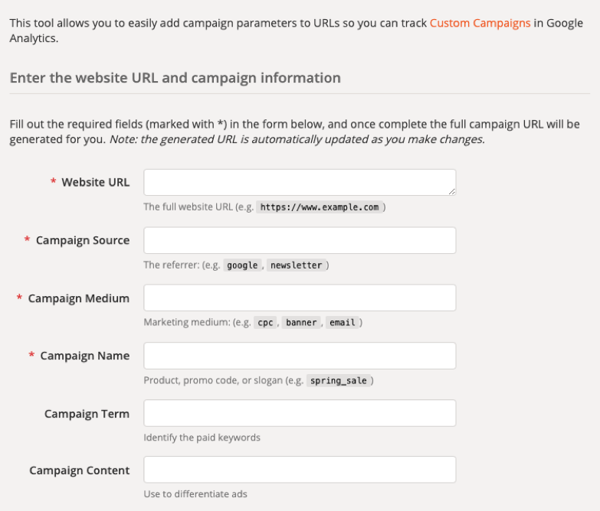
This is an easy way to measure the impact of emails and other linking efforts on your website.
Assign marketing assets to campaigns.
Many marketing platforms, such as HubSpot have built-in tools that do this for you.
What’s the difference between a campaign and a utm_campaign?
HubSpot campaigns are used to tag related marketing assets and content in HubSpot so you can easily measure the effectiveness of your collective marketing efforts.
utm_campaign tags are used to track traffic to your website. HubSpot campaigns may include traffic that is tagged with utm_campaign parameters, but not all utm_campaign parameters are necessarily related to a HubSpot campaign.
HubSpot campaigns are a group of related marketing assets and content, under a certain marketing campaign. Associating marketing assets and content in HubSpot to a campaign allows you to measure the effectiveness of your collective marketing efforts.
Source: HubSpot
It will look something like this:
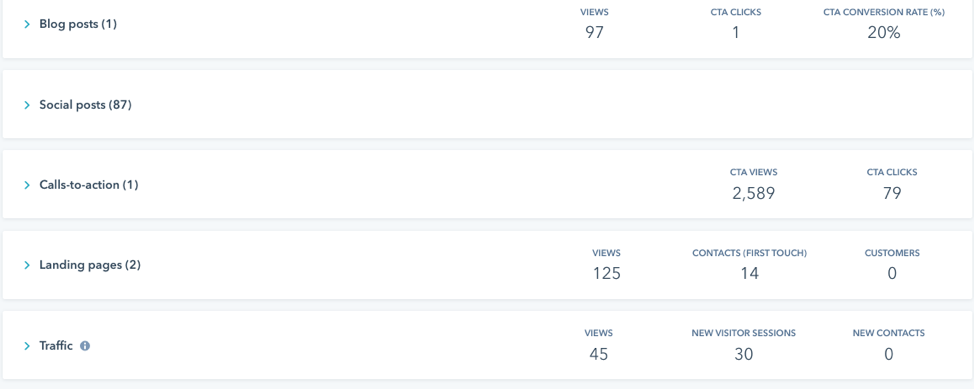
You can then drill down to see what assets are having the best impact.
If you have taken a statistics course you have probably heard the phrase:
Figures don’t lie, but liars can figure.
An effective way to safeguard against this is to go into every A/B or Multivariate test with the objective to be failure. Don’t look for successes, look for failures. This can help offset the tendency to make correlations to causations that don’t exist.
One of my favorite blogs is Occam’s Razor by Avinash Kaushik.
Here is one reason why:
Great Analyst's Best Friends: Skepticism & Wisdom!
Here's something important I've observed in my experience in working with data, and changing organizations with ideas: Great Analysts are always skeptical. Deeply so.
This was always true, of course. But, it has become mission critical over the last few years as the depth, breadth, quantity and every other dimension you could apply to data has simply exploded. There is too much data. There are too many tables/charts/"insights" being rammed down your throat. There has been an explosion of "experts."
If you are not skeptical, you are going to die (from a professional perspective).
… skepticism flag should be: Look for things in the data-set that disprove the summary statement.
… skepticism flag (for a smart Analyst, usually this is the first one) should be the perennial favorite: Correlation does not imply causation!
Data-Driven or Data-Informed?
BOTH!
Be skeptical when running A/B tests and look for failure not success.
All data has context. Apply it.
Don't invest additional resources without examining statistical significance.
Subscribe to:
Posts (Atom)
Why Using AI Tools Doesn’t Make You an Expert
Using AI tools doesn’t make you an expert—any more than looking at your own CT scan makes you a radiologist. It just means you’re holding ...

-
Predictive Lead Scoring: A Lean Tool For Marketing Posted by Phil Wiseman on Oct 25, 2017 2:40:50 PM in Share 5 The ...
-
We have heard it many times: "Google AdWords does not work! We are not seeing any ROI." In a perfect world, Google AdWords ...
-
I am very fortunate to attend many gatherings with small business owners and when it comes to internet marketing it seems many are looking ...


